-
,
- Configuring Your Server ,
- Installing / Configuring WordPress ,
- Hardening The Environment ,
- Installing OSSEC HIDS
Configure Your Server
First step was obviously to remote into my server via SSH (secure shell):
$ ssh -p user@Let's remember that the use of # and $ at the beginning of the command syntax through out this post are not part of the commands. Once in, we need to install our LAMP stack. In case you're wondering, LAMP is an acronym that refers to the bundling of free, open source software. It stands for Linux (operating system), Apache HTTP Server, MySQL (database software) and PHP (LAMP). This stack are the general components you require to build a basic web server. It's important to understand that this will be a single-tiered environment, it does not include any more advanced configurations you'd need for n-tiered architectures.
Step 1. Install Apache HTTP Server
Using my distribution I was able to use yum to locate and install readily available installations. To better understand the yum options you can run:$ yum --helpI first need to run find the Apache installer I want so I run:
$ yum search httpFrom that I get a list of possible options:
httpd.i686 : Apache HTTP Server httpd-devel.i686 : Development interfaces for the Apache HTTP server httpd-manual.noarch : Documentation for the Apache HTTP server httpd-tools.i686 : Tools for use with the Apache HTTP Server and more...Right off the bat I see the one I want httpd.i686, if you see the description it reads Apache HTTP Server. So now I run:
yum install httpd.i686Just let it run and when it finishes it should read:
Complete!
Step 2. Install MySQL
Following the same steps as above let's get MySQL installed.$ yum install mysql-serverAgain, just let the installer run and when its done you'll be greeted with:
Complete!You then want to configure it. Here you can run its secure installation by running:
$ run mysql_secure_installationYou'll need to create a root password to the database so follow the prompts. By default, if a clean install it won't have a password so just click enter to set it. It'll ask you if you want to set your root password, from a security perspective the answer is obviously Y. Here are the rest of the questions and the answers you'll want to give:
Set root password? Y Remove anonymous users? Y Disallow root login remote? Y Remove test database and access to it?Y Reload privilege tables now?YOnce that is done you'll get a success and you've securely installed your MySQL database instance.
Step 3. Install PHP
Following the same steps as above let's get PHP installed.$ yum install php-mysql.i686Remember the search feature above. You might need it based on your OS distribution. I was specifically looking for the install that was described as:
php-mysql.i686 : A module for PHP applications that use MySQL databases
Step 4. Update Applications
What kind of InfoSec discussion would this be if we didn't recommend you update all the installs to ensure you have the latest builds. Fortunately its very simple to do, simply run:$ yum upgrade
Step 5. Start Your Engines
Awesome, everything is installed, with exception to WordPress but that's ok, let's get these bad boys started. Again in terminal: To check the status of your Apache install:$ /etc/init.d/httpd statusTo start your Apache install:
$ /etc/init.d/httpd startTo check the status of your MySQL install:
$ /etc/init.d/mysqld statusTo start your MySQL database:
$ /etc/init.d/mysqld startNow, let's test things went ok. What you need to know is that now that Apache is installed your default web directory is here:
$ var/www/html/We now want to create a basic index.html page and say hi to the world. Via terminal you can use one of the many available editors, I'll stick with nano as I'm not that great with the others yet. So to create a file I navigate to my web directory:
$ cd var/www/html/Once in the directory I use nano to create the file:
$nano index.htmlThe editor will open and I type normally:
Hello World I love Malware!!!Using control X I choose to exit, type y to save my changes. You should be able to test it by going to your site: http://somesite.com and it should display on the browser:
Hello World I love Malware!!If you made it here then you have successfully installed your LAMP stack. CONGRATS!!! But it's not over yet, now we need to install WordPress and get that configured.
Install / Configure WordPress
So there are obviously a ton of guides out there on how to go about this and none is better than what you'll find on the codex here: http://codex.wordpress.org/Installing_WordPress, so I'll keep it short and sweet. A copule of key things you'll to remember are:
-
,
- Don't forget to create your database name ,
- Remember to modify your Apache files to accept directives in .HTACCESS
Step 1. Download WordPress
So keeping it simple, let's navigate to your web directory:$ cd var/www/html/Once there we're going to download the latest instance of WordPress:
$ wget http://wordpress.org/latest.tar.gzThen we want to unzip it:
tar -xzvf latest.tar.gzRemember that it will extract into a directory called wordpress. We're going to move all the content out of that wordpress directory and move its content into html. You can do this by running:
mv wordpress/* ../Now you want to remove your index.html. You can do that by going back to the html directory and removing. You do so like this:
rm index.htmlType y if it asks you if you're sure.
Step 2. Add your Database
Once you've downloaded and moved the files around take a minute to go back to your database and create your new database. Again via terminal:$ mysql -u -pIt will then prompt you for your password, that's why you don't add it in the syntax above. You'll see it change where you are now in mysql. You'll then type:
mysql> create database ;Just like that you have created the database you plan to use for your WordPress install.
Step 3. Configure WordPress
So now we need to make the WordPress install talk to the database. Again we go back to the codex for some guidance: http://codex.wordpress.org/Editing_wp-config.php So from reading that I know there are a few areas that I'm going to need to modify. First the area that specifically asks about my database information:// ** MySQL settings - You can get this info from your web host ** // /** The name of the database for WordPress */ define('DB_NAME', ''); // look above at Create Database step /** MySQL database username */ define('DB_USER', ''); // if a clean install and if you haven't done anything else, then its likely root /** MySQL database password */ define('DB_PASSWORD', ''); // Same one you created above when you installed the database /** MySQL hostname */ define('DB_HOST', 'localhost'); // works as its on a single tiered install, if distributed it'd be different /** Database Charset to use in creating database tables. */ define('DB_CHARSET', 'utf8'); /** The Database Collate type. Don't change this if in doubt. */ define('DB_COLLATE', '');Second the area where I punch in my salts. We want to make sure that our application is securely transfering our connection information so we use Salts to encrypt that communication. The easiest way is to simply go to this online generator: https://api.wordpress.org/secret-key/1.1/salt/ You'll update the salts in this area:
/**#@+ * Authentication Unique Keys and Salts. * * Change these to different unique phrases! * You can generate these using the {@link https://api.wordpress.org/secret-key/1.1/salt/ WordPress.org secret-key service} * You can change these at any point in time to invalidate all existing cookies. This will force all users to have to log in again. * * @since 2.6.0 */ define('AUTH_KEY', ''); define('LOGGED_IN_KEY', ''); define('AUTH_SALT', ''); define('LOGGED_IN_SALT', ''); define('NONCE_SALT', 'Salt');Lastly you want to make sure you are creating a unique database prefix, you do so here in the wp-config file:
/** * WordPress Database Table prefix. * * You can have multiple installations in one database if you give each a unique * prefix. Only numbers, letters, and underscores please! */ $table_prefix = ''; // doesn't have to extravagant, just unique
Step 4. Install WordPress
Now to the easy part. To install simply navigate to your domain via the browser: http://somesite.com. It should detect that the wp-config file is created and greet you with the following: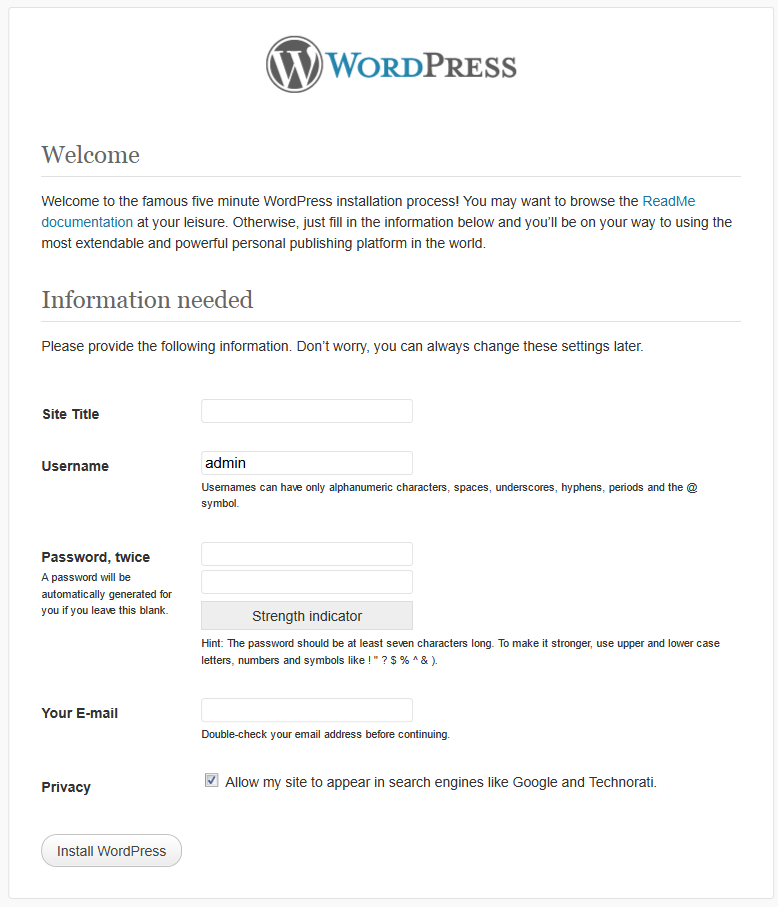
-
,
- Do not use admin or administrator - make it unique - as the username ,
- Use a good password generator with no less than 10 characters
Friendly Reminder - Modify Apache Config to Allow .HTACCESS Directives
This is probably something that most will overlook. You want to be sure to navigate to the httpd.conf file and look for:AllowOverride NoneChange to:
AllowOverride AllThe file should be in this directory:
/etc/httpd/confIt should be in the following:
# AllowOverride controls what directives may be placed in .htaccess files. # It can be "All", "None", or any combination of the keywords: # Options FileInfo AuthConfig Limit # AllowOverride Alland
Options FollowSymLinks AllowOverride AllOnce that is done don't forget to restart your server:
$ /etc/init.d/httpd start
Harden The Environment
If only we could leave the new website and server alone. Unfortunately its not that simple. So here we're going to look at a few areas:
-
,
- WordPress ,
- Server firewall
WordPress
I provide a good discussion on hardening tips here: http://sucuri.net/how-to-stop-the-hacker-by-hardening-wordpress.html On this install I did the following:-
,
- Sucuri Security plugin for my Web Application Firewall, File Auditing and Integrity Checking. ,
- HTACCESS permissions were set to 600 - allowing only the owner permissions to read and write ,
- Disabled directory listing ,
- Disabled theme / plugin editor ,
- Basic Access Authentication on Web Directory
$ chmod 600 .htaccessFor directory listing I opened .htaccess and added:
#PREVENT DIRECTORY LISTINGS Options -IndexesAnd to disable the theme / plugin editor I added the following to the end of wp-config.php:
/** Disable plugin and theme editor */ define('DISALLOW_FILE_EDIT',true);Another thing I added that I don't hear discussed too often is Basic Access Authentication. It's too bad as its extremely simple. How it works is simple, it adds an additional layer of authentication to a directory on your web server. What I especially like is that it's independent of the built in WordPress authentication and simple to implement. You can read more on how to implement here: http://httpd.apache.org/docs/2.0/howto/auth.html For me, the simplest approach was to run this via terminal:
htpasswd -c /HTPASSWD is a built in password utility that comes with Apache. Once that is created you want to place the directives in the .htaccess or the Apache httpd.conf file. It was easy enough to drop it in the .htaccess file, so that's what I went with. Drop this into your .htaccess file and put it into the wp-admin directory. Don't do what I did and drop it in your web directory, it'll block access to everything.. :).. Here are the directives:
AuthType Basic AuthName "Restricted Files" AuthUserFile Require userJust like that you have added a second authentication mechanism that will force anyone trying to access your wp-admin to use a separate, independent, access point to log in. This does not do away with the need for them to log in via wp-admin also. Now you have made it even more difficult to exploit your log in page as the potential attack vector.
Server Firewall
So by default your Linux server should be running iptables so let's take advantage of that and make it such that only IP's that you want and know can access your server. You can use iptables by using this command to filter your IP or domain:/sbin/iptables -A INPUT --source -p tcp --dport 22 -j ACCEPTYou will also want to disable access from any port except 22, for SFTP and SSH:
$ /sbin/iptables -A INPUT -p tcp --dport 22 -j DROPOne thing to note is that you can use a domain in the place of IP's if you follow the instructions outline in my post here: http://sucuri.net/how-to-lock-down-wordpress-admin-panel-with-a-dynamic-ip.html The last thing you want to do is check to see what ports are accessible to the public:
$ netstat -tanep |grep LISTENYou want to look through the various line items and validate that each port should be open. If it doesn't belong open then you want to be sure to apply a rule to your firewall to close it:
$ /sbin/iptables -A INPUT -p tcp --dport -j DROPIf you're configuring this server only for this install then all you really need to have open are the ports used for ssh and httpd. To verify the drop rule applied you can check your iptables rules by running:
$ iptables -nLIf you applied the rules to block IP's then you should see them in there. Another useful tip is monitoring the performance of your machine. One very useful tip for that includes:
$ df -hAnother very useful tip is monitoring logs real-time, but let's get real, who is that anal retentive? Ok, maybe some, and for you there is this:
$ tail -f /var/log/httpd/*log
Installing OSSEC HIDS
My opinions of OSSEC
 might be a bit bias as its founder is a close friend and colleague of mine, but that's ok because it's also a really awesome product.
It's an open source host-based intrusion detection system (HIDS). It provides a powerful engine capable of providing the following key features:
might be a bit bias as its founder is a close friend and colleague of mine, but that's ok because it's also a really awesome product.
It's an open source host-based intrusion detection system (HIDS). It provides a powerful engine capable of providing the following key features:
-
,
- Log Analysis ,
- File Integrity Checking ,
- Centralized Policy Enforcement ,
- Rootkit Detection ,
- Real-time alerting and active response
$ yum install makeFor my configuration I went with a server configuration versus their other options: http://www.ossec.net/main/manual/manual-installation/manual-installation-types Another very good reference that walks you through the configuration once installed is here on the founders personal blog: http://dcid.me/texts/my-ossec-setup-manual.php. It provides some tidbits of knowledge that not every one applies but that helps make it more effective at keeping you protected.,